
Why image callouts work in App Store screenshot marketing
Screenshot viewers scan fast. A well-placed badge or sticker can communicate value before someone reads your full headline. Used correctly, callout graphics highlight pricing, feature names, awards, or key outcomes without cluttering the layout.
The goal is not decoration. The goal is faster comprehension. Bezel Studio keeps that workflow practical by letting you import, edit, and place assets directly inside your screenshot canvas.
- Import photos, logos, and UI support graphics quickly
- Move, rotate, scale, and layer image elements precisely
- Save reusable image presets for repeat campaigns
How to create sticker callouts step by step
- Import your base image. Add a logo, icon, or badge from photo picker or preset assets.
- Remove background for clean cutout. Use background removal to isolate the subject and avoid visual noise.
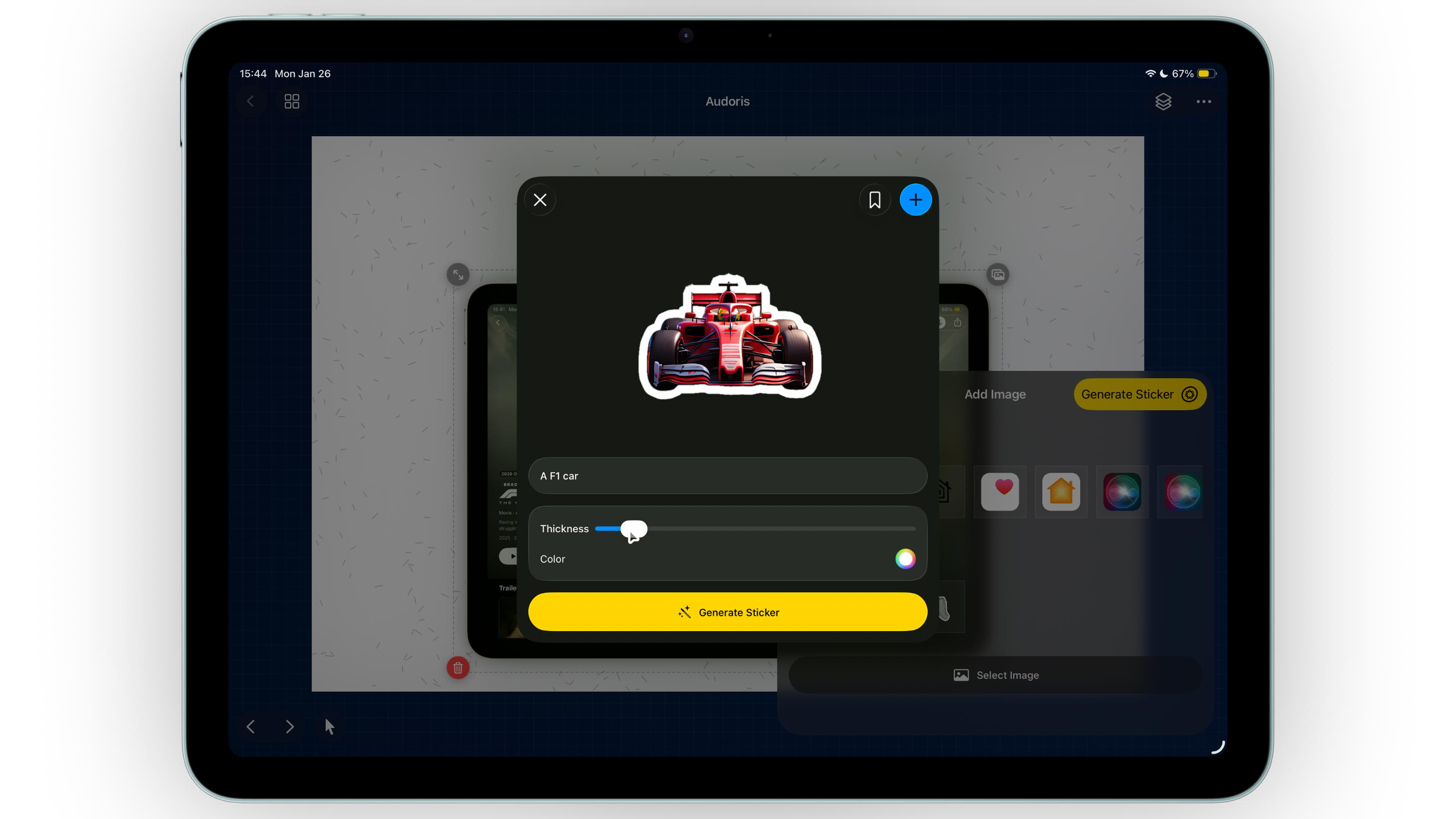
- Apply sticker border styling. Tune border thickness and color so the sticker remains readable on your chosen background.
- Place near your message anchor. Keep callouts close to related copy or feature screenshot, not floating randomly.
- Save as preset for consistency. Reuse approved stickers across multiple canvases and updates.
Using generated assets and badges without overdesigning
Generated graphics are useful when scoped
On supported devices, Image Playground-style generation can help create quick visual accents. Treat those assets as supporting elements, not as the primary message.
Prioritize readability over novelty
A simple, high-contrast sticker usually performs better than a highly detailed illustration in small App Store previews.
Reuse approved assets across launches
Maintaining a curated preset library reduces design drift and keeps your brand presentation consistent over time.
A useful sticker adds context in one glance, then immediately returns focus to the product UI.
Common image and sticker mistakes
- Using too many stickers in one screenshot panel
- Applying thick borders that overpower copy and UI
- Placing callouts far away from related feature text
- Mixing multiple illustration styles in one set
- Skipping presets and rebuilding assets inconsistently
FAQ: stickers for App Store screenshots
Can I remove image backgrounds directly in Bezel Studio?
Yes. Background removal is available so you can create clean cutouts for sticker-style callouts.
Are stickers useful for every screenshot?
No. Use them where they improve clarity. Not every panel needs a badge or visual callout.
How do I keep sticker usage consistent?
Save and reuse image presets with fixed border and placement patterns across your screenshot set.
